For producers & directors of social + commercial video

Turn any video intoshot lists.

StoryFolder's AI breaks a video into its shots and transcript in seconds. So you can annotate it, study it, plan with it, and create a searchable archive.

Download the Free App See a live storyboard

Free for macOS + Windows · No credit card

StoryFolder board of RUN_RABBIT_MASTER.mov showing shot cards with Shot Size, Composition and People values, the inspector open on shot 243.
Apple, Netflix and Sony logos

Industry trusted

What working video teams said

StoryFolder is amazing! It opens up a whole new way of visualizing productions.

An awesome tool for any visual storyteller.

It's just so cool to dive deep on how my fav videos have been put together.

I am quite surprised by the possibilities.

Far, far, far quicker than me doing the same job manually.

Intuitive and genius.

It works like a charm. Such a great tool. Just a big value.

The most innovative filmmaking tool I've seen in a long time.

I can see the story clearly and edit more efficiently.

StoryFolder saves me endless time creating screengrabs and shot lists.

StoryFolder is fantastic! Such a time-saver.

Each tool is really useful.

Amazing tool. Easier than any other way.

Every shot

461 shots from a 27-minute cut

Each card carries a real frame from its own shot, the shot number, the elapsed start and the duration, in the order they play. Nothing was typed to get here.

Notes and data

Add the notes your job needs

Open any shot and write against it, or select a run of shots and fill them together. Fields come in six types: Text, Tag, Dropdown, Checkbox, Rating and Number, so a Shot type dropdown and a Release form checkbox live beside the frame they describe.

The note fields that ship with the app are free, and so is making your own. See custom fields.

Shot inspector beside a frame from under a highway, showing Scene, Scene slash Shot number, Shot Type, Camera Movement, Transitions and Sound.

    AI Autofill

    Let AI autofill metadata for every shot

    Add custom fields and descriptions for AI to analyze and fill for every shot. AI Autofill is included on every plan: the free plan covers your first 100 shots, and Pro is unlimited.

    AI Autofilling50 shots

    • Shot Size
    • Content Type
    • Composition
    • Interior / Exterior
    • People
    • Lighting

    Transcription

    Transcribe on your own machine

    Transcription runs locally on your computer, free, in up to 100 languages, with speakers separated and renameable. Your footage is not uploaded to be transcribed. Every line attaches to the shot it was said in, so the words sit under the picture and print under each card in the PDF.

    Read how transcription works.

    1. Audiofrom the video you imported
    2. Local Whisper modela process on the desktop
    3. Transcriptqueued once the import finishes
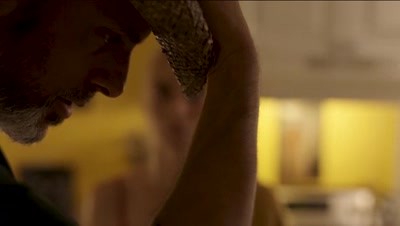
    4. Joined to the shotA man in profile, one shot the transcript lines are joined to.

    Share

    Publish a view-only board

    The link opens in any browser. No account needed.

    Publish a board and anyone with the link sees your shots and notes in Storyboard, Thumbnails or Shot List layout. It is view-only: no comments, picks or approvals, and a board built from a local file shows the exported frames rather than a player. Republishing keeps the same URL. Password protection is Pro.

    • View-only, three layouts
    • No account needed
    • Password, Pro

    Export

    Hand over the files

    Export a storyboard PDF, a still and a clip per shot, and the transcript as SRT, WebVTT, plain text, CSV or Fountain, on every plan, with a watermark on Free. Switch on Spreadsheet and Shot List.xlsx and Shot List.csv are written together, a frame in every row and your fields as columns. Spreadsheets are Pro.

    Switch on Editorial and your selects come out as a timeline: Selects.edl, Selects.xml (Final Cut Pro 7 XML) and Selects.fcpxml, cut in board order against the file you imported, plus a rendered Selects.mp4 reel. EDL and FCP7 XML open in Premiere, Resolve and Avid; FCPXML opens in Final Cut Pro and Resolve. Editorial is Pro; the selects reel is on every plan. There is no AAF, and nothing imports back in.

    • Shot List.xlsx
    • Shot List.csv
    • The first shot of Run Rabbit, barbed wire against the sky, as the exported still.
      Images/Shot-1.png
    • The first shot of Run Rabbit as the exported clip.
      Clips/Shot-1.mp4
    • Storyboard.pdf
    • Subtitles.srt

    Read nextevery column and the duration arithmetic·the export overview

    Boundaries

    What it does, and does not

    Knowing where it stops saves you a download.

    StoryFolder does StoryFolder does not
    Import rendered video files and YouTube linksImport or manage NLE project files
    Detect shots and let you correct the cutsDraw storyboards from scratch
    Transcribe locally with OpenAI WhisperEdit video by editing text
    Fill the fields you enable with AI AutofillFill every field, or promise an accuracy figure
    Hold a searchable library of every video you importedTrack drives, ingest media or sync between machines
    Export XLSX, CSV, PDF, stills, clips and EDL, FCP7 XML or FCPXML selects timelinesExport AAF, or read any timeline format back in
    Count shots per label and report durationsEstimate costs, rates or schedules

    Import the video in front of you

    Sign in, download for macOS or Windows, and drop a cut in.

    Free covers detection, notes, custom fields, transcription, the PDF, stills and clips, a share link, and your first 100 shots of AI Autofill. Pricing covers what Pro adds.

    Sign in and download

    macOS and Windows

    FAQ

    Questions

    Converting videos, taking notes, sharing, plans and what StoryFolder does not do.

    Getting Started

    What is StoryFolder?
    StoryFolder is an AI video to storyboard converter. Drop in any video — a YouTube link or a local file — and StoryFolder extracts every unique shot, lays them out on an interactive storyboard, and lets you add notes, organize ideas, and share with your team in seconds.
    Who is StoryFolder for?
    StoryFolder is built for anyone who works with video: marketing agencies, video production studios, filmmakers, social content creators, editors, directors, cinematographers, and students. If you analyze videos, plan productions, study competitors, or share visual ideas with a team, StoryFolder cuts hours out of the workflow.
    How do I get started with StoryFolder?
    Sign up for a free account at storyfolder.com/signup, download the desktop app for Mac or Windows, paste any YouTube URL or open a video file, and you'll have a complete storyboard in about 90 seconds. The full Getting Started guide walks through every step.
    Is StoryFolder free?
    Yes. StoryFolder has a free plan that lets you convert videos to storyboards, take notes, and share via a public link. It includes 6 boards of 50 shots, custom note fields, and your first 100 shots of AI Autofill. The Pro plan unlocks unlimited boards and shots, unlimited AI Autofill, spreadsheet export, video clip exports, password-protected sharing, and charts. See pricing for the full comparison.

    Converting Videos to Storyboards

    How do I convert a video to a storyboard?
    Open StoryFolder, paste a YouTube link or upload a video file, and the AI shot detector automatically extracts every unique shot. The shots appear on an interactive storyboard you can review, refine, take notes on, and export. No drawing required — StoryFolder is a video to storyboard converter, not a drawing tool.
    How does AI shot detection work?
    StoryFolder analyzes the visual difference between consecutive frames. When the difference exceeds a threshold, that point is marked as a shot boundary. The detector is tuned to ignore camera shake, fast motion, and light flicker, while catching hard cuts. Gradual transitions like dissolves and fades can be missed, so you can adjust the sensitivity slider after import to detect more or fewer shots, and split or join any shot by hand.
    Can I extract a storyboard from a video without drawing it?
    Yes — that's the entire point of StoryFolder. Most storyboard tools require you to draw or import frames manually. StoryFolder starts from an existing video and generates a shot-by-shot storyboard automatically using AI. You can then annotate, refine, and share.
    How do I create a storyboard for a video I haven't filmed yet?
    Use a reference video as your starting point. Import an ad, a film scene, or any video with the structure you want, and StoryFolder will turn it into a storyboard you can study, modify, and use as a template for your own production. Plan productions faster by reverse-engineering proven examples.
    What if the AI detects shots incorrectly?
    You can refine the shot list any time. Use the Split tool (C) to add a cut the AI missed, the Merge tool (J) to combine consecutive shots, and the Frame Selector tool (F) to choose a custom thumbnail for any shot. The full Splitting & Merging guide covers the workflow.

    Source Videos & Supported Formats

    Can I make a storyboard from a YouTube video?
    Yes. Paste any public YouTube URL — including YouTube Shorts — into StoryFolder and it fetches the video, runs AI shot detection, and produces a complete storyboard. Works for any publicly accessible YouTube video, no plugins or browser extensions required.
    What video file formats does StoryFolder support?
    MP4, MOV, MKV, AVI, WebM, and MTS. Under the hood StoryFolder uses FFmpeg, so most modern codecs work — if your file plays in QuickTime or VLC, it'll almost certainly import. See Supported Formats for the full list.
    Can I import private or unlisted videos?
    Unlisted YouTube videos generally work. Private videos do not — the URL doesn't authorize StoryFolder to fetch them. For private content (internal client cuts, etc.), download the file and import it directly as a local file.
    Is there a limit on video length?
    There's no hard cap. Short clips finish in under a minute; feature-length films take 30–90 minutes the first time depending on your machine. Processing happens locally on your computer, so there's no upload step or cloud bottleneck.

    Notes, Customization & Sharing

    How do I take notes on a storyboard?
    Click any shot to open the notes panel. StoryFolder ships with default note fields (Key Takeaways, Interpretation, Story, Action, Cinematography, etc.) and you can build your own. Select multiple shots to apply the same note to all of them. Notes guide →
    Can I customize the note fields?
    Yes, on every plan. Open Preferences → Notes & Data and design your own fields with six types: text, tag, dropdown, checkbox, rating, and number. There's also an AI assistant that suggests entire field sets based on what you describe (e.g. "cinematography breakdown" or "ad analysis"). Custom fields →
    Can I share a storyboard with my team or client?
    Yes. Click Share Link in the editor and StoryFolder publishes your storyboard to a public URL like storyfolder.com/b/<id>. The shared page is mobile-friendly and includes the embedded video, all your notes, and three view modes viewers can toggle between. Privacy levels include public, link-only, and password-protected. Sharing guide →
    What can I export from StoryFolder?
    PDF storyboards, images, individual video clips per shot, and script/subtitle files (SRT) on every plan. The Pro plan adds shot list spreadsheets (CSV/Excel with elapsed timecodes + notes as columns). There is no EDL, XML, AAF or FCPXML export for editing apps. Export overview →

    Pricing & Plans

    What's the difference between Free, Pro, and Teams?
    Free covers casual use: 6 boards, 50 shots per board, custom note fields, your first 100 shots of AI Autofill, PDF + image export. Pro is the sweet spot at $14/mo billed annually ($168/year — save 18%) or $17/mo month-to-month: unlimited boards and shots, unlimited AI Autofill, all export formats, password-protected sharing, and the Analyze view. Teams (from $49/mo, coming soon) adds shared seats and unlimited client viewers for agencies and studios. Side-by-side comparison →
    Is there a free trial for paid plans?
    Yes — every paid plan starts with a 14-day free trial. No charge during the trial. Cancel anytime before day 15 and you won't be billed.
    What's the refund policy?
    30-day money-back guarantee on every paid plan. If StoryFolder doesn't fit your workflow, reply to any email from us within 30 days of your first charge and we'll refund you. Refunds →
    Can I cancel anytime?
    Yes. Cancel any time from your subscription page. Your access continues through the end of the period you've already paid for, and your projects + notes stay safe. No retention runaround.

    Use Cases

    How do marketers use StoryFolder?
    Deconstruct competitor ads shot-by-shot, build pitches with annotated reference videos, study why a viral ad converts, plan campaigns by reverse-engineering proven examples, and share storyboard reviews with clients via password-protected links. StoryFolder is a video production storyboard tool that turns research into deliverables.
    How do filmmakers and production studios use StoryFolder?
    Study cinematography, framing, and pacing in any film or TV scene. Build shot lists with elapsed timecodes. Plan productions by referencing proven scenes. Share storyboards with DPs, directors, and clients. Custom fields let you tag shots by lens, lighting, movement — whatever your team tracks.
    How do YouTubers and content creators use StoryFolder?
    Reverse-engineer videos that perform well in your niche. Build content templates by studying structure and pacing. Plan series by storyboarding from reference clips. Export shot lists for editors. The free plan covers most solo creator workflows.
    Can I use StoryFolder for teaching film or video production?
    Yes — many educators do. StoryFolder lets students convert any video into a storyboard, annotate cinematographic techniques, and submit visual analyses. Share links are mobile-friendly so students can review on any device. Contact us for educational pricing.

    How StoryFolder Compares

    How is StoryFolder different from storyboard drawing apps?
    Drawing apps (Storyboarder, Studiobinder, FrameForge) start with a blank canvas — you draw or import each frame by hand. StoryFolder starts with an existing video and generates a shot-by-shot storyboard automatically using AI. If you want to study or reference real footage, StoryFolder is faster. If you want to draw original concepts, use a drawing tool.
    Why not just take screenshots from a video?
    Screenshots are tedious (pause, capture, repeat for every shot), inconsistent (which frame represents the shot?), and produce no structure — just a folder of images. StoryFolder identifies every unique shot automatically, gives each a representative thumbnail, organizes them in time order, lets you take per-shot notes, and exports a complete storyboard in seconds.
    Is there a free AI video storyboard tool?
    Yes — StoryFolder has a free plan that includes AI shot detection, PDF export, and storyboard sharing. It's the most direct path to extracting storyboards from any video without paying anything. See pricing →

    Privacy, Data & Security

    Where are my videos stored?
    Your video files stay on your computer. StoryFolder is a desktop app that processes video locally — your videos never get uploaded to our servers. Only your notes and storyboard metadata sync to our servers (for sharing and multi-device access). Data storage →
    Are my storyboards private?
    Yes by default. Storyboards only become public when you explicitly publish a share link. Even then, you choose between public, link-only (unlisted), or password-protected access. Privacy levels →
    Can I delete my account and data?
    Yes. Email us and we'll permanently delete your account, projects, notes, and all associated data. We comply with GDPR right-to-erasure requests. Delete your account →

    Technical & Troubleshooting

    What are the system requirements?
    macOS 11 Big Sur or newer (Apple Silicon or Intel) and Windows 10 (64-bit) or newer. 8 GB of RAM recommended, 1 GB of free disk space plus room for your video cache. Install guide →
    My video import failed. What now?
    Most failures are private URLs, unsupported codecs, or network blips. Walk through the Troubleshooting Imports checklist — it covers the common fixes (re-encode to MP4 H.264, check internet, try a fresh URL). If you're still stuck, reply to any email from us.
    I downloaded the app but can't sign in.
    The desktop app uses your browser to authenticate. If the handoff failed, walk through the Activation troubleshooting guide — or simpler, deactivate the machine from your account page and try Connect Your Account again.

    Something else? Contact support or browse the help center.